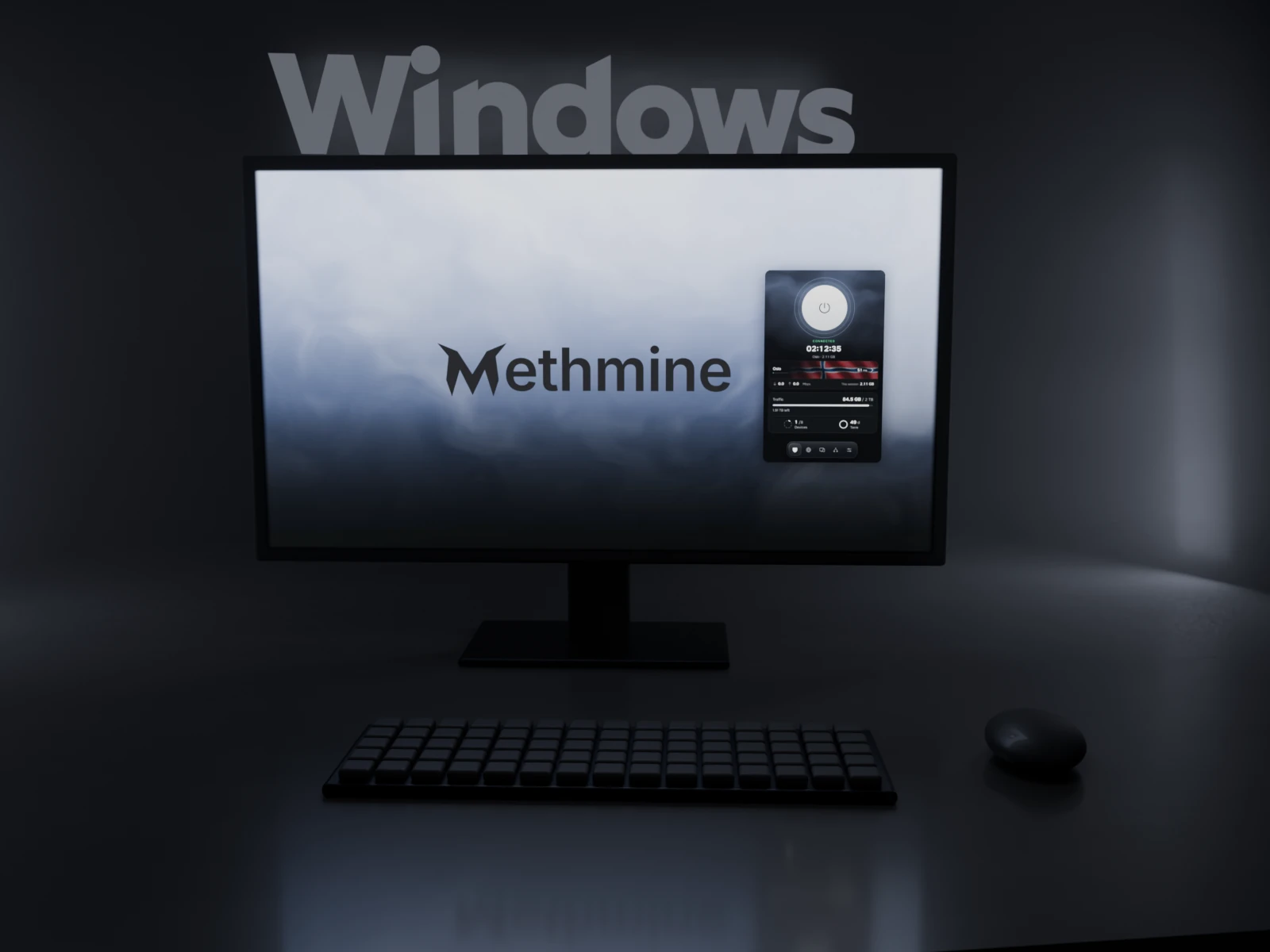
Requirements
64-bit Windows 10 or 11.
How to install
- Click Download installer and open the file
MethmineVPN-…-setup.exe. - The installer is not yet signed with a digital certificate, so Windows usually shows a SmartScreen window with Unknown publisher. Click More info, check the file name and click Run anyway. Details: SmartScreen warning.
- Follow the installer’s steps. You don’t need administrator rights to install.
- Open Methmine VPN and sign in with Google, by email, with Telegram or with a QR code: How to sign in.
- Pick a server and connect.
Windows asks for administrator rights once, inside the app, at the Tunnel service step: the service is what turns the VPN on.
What you get in the app
- One-button connection and a choice of servers. The app shows your latency to each server.
- Split tunneling: you choose which programs go through the VPN. A program made of several processes is picked as one line.
- Rules for sites: which sites open directly and which go through the VPN.
- Ad and tracker filtering through DNS, and a choice of DNS server.
- A diagnostics screen in case something doesn’t connect.
- When your access ends, the VPN turns off by itself and the internet works as usual.
- The app checks for updates by itself and shows what’s new after an update.
The app is in English, Russian, Ukrainian and Kazakh.
Free trial: 3 days, once, 30 GB, up to 3 devices, no card needed. Plans: Pricing.